When you buy a new computer or install a fresh version of Windows, it often comes loaded with preinstalled apps that you may never use. These apps, sometimes called bloatware, can take up storage space, slow down your system, and clutter your interface. While some of them can be removed manually, others are more difficult to uninstall using built-in Windows tools.
This is where IObit Uninstaller becomes incredibly useful. As a powerful uninstaller for Windows, it simplifies the process of removing unwanted apps, including those that are usually hard to delete.
What Are Preinstalled Apps and Why Remove Them?
Preinstalled apps are programs that come bundled with your operating system or device. While some may be helpful, many are unnecessary for most users.
Common issues caused by these apps include:
Wasted Storage Space
Unused applications occupy valuable disk space that could be used for important files.
Slower System Performance
Background processes from these apps can consume system resources.
Cluttered Interface
Too many apps make your system look messy and harder to navigate.
Limited Control
Some apps cannot be removed easily through default settings.
Removing these apps can significantly improve your PC’s performance and usability.
Why Use IObit Uninstaller?
Windows provides basic uninstall options, but they often leave behind leftover files and registry entries. IObit Uninstaller goes a step further by completely removing programs and their traces.
Key Advantages:
- Removes stubborn and preinstalled apps
- Cleans leftover files automatically
- Easy-to-use interface
- Fast and efficient performance
- Supports batch uninstall
As a dedicated uninstaller for Windows, it offers more control and deeper cleaning compared to built-in tools.
Key Features That Make It Effective
1. Powerful Scan Engine
It detects all installed programs, including hidden and bundled apps.
2. Force Uninstall
Removes programs that cannot be deleted through normal methods.
3. Batch Uninstall
Allows you to remove multiple apps at once.
4. Residual File Cleanup
Deletes leftover files and registry entries after uninstalling.
5. Software Health Monitoring
Identifies problematic or rarely used applications.
Step-by-Step Guide to Remove Preinstalled Apps
Follow these simple steps to remove unwanted apps using IObit Uninstaller:
Step 1: Download and Install
Get the latest version of this uninstaller for Windows from the official website and install it.
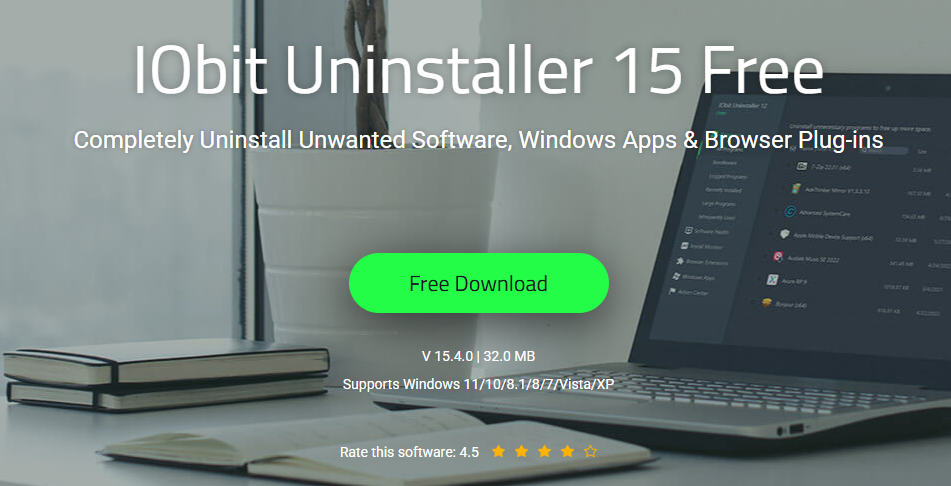
Step 2: Launch the Program
Open the software to access its main dashboard.
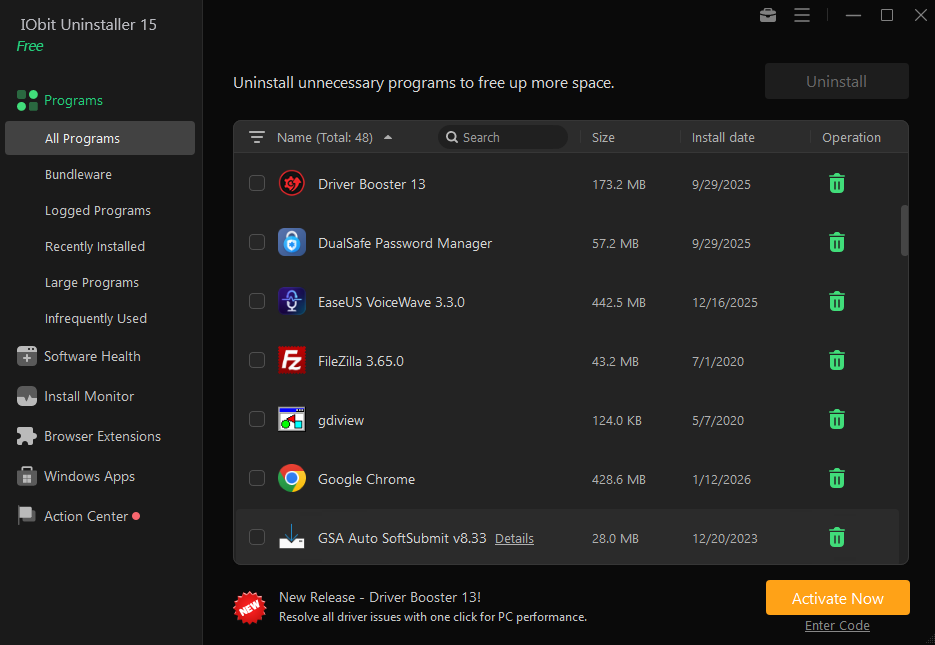
Step 3: Go to Installed Programs
Go to the section that displays all the installed applications.
Step 4: Find Preinstalled Apps
Look for apps you don’t need. You can sort or search for them easily.
Step 5: Select Apps to Remove
Tick the checkbox next to each unwanted app.
Step 6: Click Uninstall
Press the uninstall button to begin the removal process.
Step 7: Remove Leftovers
After uninstalling, allow the tool to scan and delete leftover files.
This process ensures that apps are completely removed without leaving unnecessary data behind.
Removing Stubborn Apps with Force Uninstall
Some preinstalled apps are difficult to remove because they are deeply integrated into the system. In such cases, the Force Uninstall feature is extremely helpful.
How to Use It:
- Open IObit Uninstaller
- Select the “Force Uninstall” option
- Drag and drop the app or select it manually
- Confirm the removal
This feature bypasses restrictions and removes even the most stubborn programs.
Benefits of Removing Preinstalled Apps
Cleaning your system from unnecessary apps offers several advantages:
Faster Performance
Fewer background processes improve system speed.
More Storage Space
Removing unused apps frees up disk space.
Cleaner Interface
Your system becomes easier to navigate.
Better Control
You decide which apps stay on your PC.
Tips for Safe Uninstallation
While removing apps, keep these tips in mind:
- Avoid deleting essential system programs
- Check app details before uninstalling
- Use batch uninstall carefully
- Always remove leftover files for better results
These practices help maintain system stability.
Common Mistakes to Avoid
Here are some mistakes users often make:
- Using default uninstall tools only
- Ignoring leftover files
- Removing important system components
- Not performing regular cleanup
Using a reliable uninstaller for Windows like IObit Uninstaller helps prevent these issues.
Why IObit Uninstaller Is a Smart Choice
With so many tools available, IObit Uninstaller stands out because of its simplicity and effectiveness. It provides advanced features while remaining easy to use.
It is ideal for:
- Beginners who want a simple solution
- Users dealing with stubborn apps
- Anyone looking to improve system performance
Its combination of power and ease makes it one of the best choices for managing installed programs.
Final Thoughts
Preinstalled apps can slow down your PC and create unnecessary clutter, but removing them doesn’t have to be complicated. With the help of IObit Uninstaller, you can easily get rid of unwanted programs and keep your system clean.
As a reliable uninstaller for Windows, it ensures that apps are completely removed along with their leftover files. By regularly cleaning your system, you can enjoy better performance, more storage space, and a smoother user experience.
If you want a cleaner and faster PC, taking control of your installed apps is the perfect place to start.