There are many ways to help your team during a WARDOGS match. A player on foot may hold a road as opponents pass between the buildings ahead. Elsewhere, a teammate may be taking players to the objective or helping a vehicle crew find equipment. Both need to know where people are, although the details they look for may differ as their roles change.
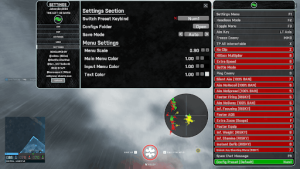
The same range of roles matters when comparing WARDOGS cheats for PC. A feature menu can include an aimbot, player ESP, radar, world-object filters and saved configurations. Each feature provides a particular type of control or information. Looking at those features alongside the game’s combat and support activities makes it easier to understand what they do and why their settings matter.
Why different roles matter to the objective
BULKHEAD’s WARDOGS brings up to 100 players together across three teams. Its main mode places a Control Zone within a larger battlefield. The team with the greatest presence inside that area earns points, and the first to reach 100 wins. Within the Control Zone, a smaller moving Hot Zone gives players double presence and double cash while they are inside it.
The scoring rules connect each activity to the team’s objective. Holding a road can protect a route into the zone. Transporting teammates forward can increase the number of friendly players occupying the zone. Delivering equipment or reviving someone can help a squad continue defending the ground it has already reached.
WARDOGS also has a persistent cash economy. Players buy equipment and vehicles, and actions that help the team can earn money. Reviving teammates and transporting friendly players are among the activities that contribute. Because cash persists across matches, equipment and transport decisions matter beyond one engagement.
A closer look at WARDOGS aiming settings
Aimbot controls generally determine target selection and the movement of the aim. Before the software can follow an opponent, it needs to determine which characters meet the selected conditions. The user’s settings can influence which candidate is considered first and which point on the character is used for aiming.
A player watching a street could see several opponents crossing it. One may be closest to the crosshair, another may be physically nearer, and a third may have less health. Target priorities help determine which of those candidates receives attention. Options for selected-bone or closest-bone targeting affect the point chosen on the character model.
The targeting field of view defines the area in which eligible players are considered. A distance limit can restrict the range, while visibility checking adds information about whether a target is currently exposed. These settings affect how the feature responds as players enter and leave the scene. They can also explain differences between two demonstrations of the same menu.
When another candidate becomes available, target switching controls the response. In a busy approach, one opponent might move behind a building just as another crosses the road. A setting that changes targets affects which movement the aim follows. Looking at the selected priorities together with switching options gives a fuller view of that behaviour than treating each setting as an isolated feature.
At longer distances, target movement matters while a projectile travels. Aim prediction estimates where a moving character will be when a shot reaches them. A gravity-drop option accounts for the projectile falling over distance. Smoothing changes how the aim travels toward the selected point, so it addresses a separate part of the aiming behaviour from target priority or prediction.
How ESP and wallhack overlays show players
The player ESP display adds information about supported characters to the scene. Depending on the available settings, that can include a box around a soldier, skeleton lines, a health indicator or a team label. Chams add another visual layer by colouring the character model. A player can enable multiple layers to make different details easier to identify.
Players commonly use the term WARDOGS wallhack for visuals that reveal positions through cover. A marker may reveal that a character is inside a building before they appear in a doorway or window. Its location still needs to be interpreted alongside the structure. A nearby opponent might be on another floor or reachable only from an entrance on the far side.
MilkyWay’s WARDOGS cheat features guide contains gameplay examples and explanations of these displays. Its options include team information and separate colours for visibility states. In a match with three teams, that context can help a user distinguish friendly movement from opponents and see whether a character is exposed or behind an obstacle.
Clear visuals help when multiple players are close to one another. Boxes, names, skeletons and model highlights can overlap near a busy entrance. Someone watching a distant route may prefer prominent position markers, while a player closer to the building also needs to see its doors, walls and other cover. The amount of information shown can be adjusted around the situation.
What radar adds to the battlefield view
A player holding an approach may keep the camera trained on a crossing ahead. A teammate helping with transport may be looking toward a vehicle or the road leading into the objective. A separate 2D radar can show selected player and object positions while the main view stays focused on the task ahead.
That wider display can show movement as a third team approaches the fight. Two groups may be occupied with each other along one side of a position, while more players move in from another direction. A cluster of markers can show the direction of that movement. Team labels or colours provide context for identifying the arrivals.
Radar scale, range and orientation determine the area shown in the panel. Marker sizes and names change how much detail fits in the panel. MilkyWay lists controls for radar appearance and supported category tracking, so a user can choose the information relevant to the current role. A configuration for travel can therefore look different from one arranged for defending a building.
The user must also consider terrain and elevation on a flat display. Two markers may appear close while their players stand on separate floors. A vehicle could be nearby on the radar but separated from the user by a wall or an exposed road. The game view supplies the surroundings needed to understand the route between those positions.
World ESP, vehicles and construction
Support tasks often include finding equipment and watching other players. Ammunition, medical equipment, containers and vehicles can all affect what a squad is able to do near the Control Zone. World ESP can display supported objects, and category filters help the user focus on the types that matter to the task.
For example, a teammate running low on ammunition may need help finding supplies before the squad moves again. A player working with a vehicle crew could instead be looking for vehicle equipment or a refuelling point. A container marker and a marker for loose equipment provide different leads, depending on what the team needs.
MilkyWay’s listed filters include supported vehicles, supply objects, buildable spawns and other locations. Vehicle categories can distinguish different types of transport. Forward operating bases, repair stations and related structures also have display options. Together, those markers can give a user a view of the infrastructure around a position.
A distance label provides one part of the decision to collect an object. Supplies may sit across an open area, or a vehicle may be beyond an occupied road. A support player can weigh the object’s location against the activity around it and the squad’s immediate needs. That makes world information relevant to the route as well as the destination.
Organizing the display and controls
A player’s information needs can shift throughout a deployment. While searching for supplies, names and object labels may be useful. During a close-range fight at a doorway, the same labels can make the scene harder to read. Category switches, text size, opacity and distance controls provide ways to adjust how much information appears.
MilkyWay describes a Battle Mode with options to keep player and mine information while reducing other ESP clutter. Saved configurations let users return to settings they have already arranged, and a preset shortcut can make switching between supported layouts easier. These options help a player organize the display around combat, movement or support activities.
Input options also form part of the setup. MilkyWay lists support for keyboard, mouse and controller input, with shortcuts that users can remap. Settings also cover the size and colours of the menu. A player comparing configurations can consider both what appears on screen and how conveniently the relevant controls can be reached.
The WARDOGS cheat store page provides the feature list, licence information and current PC requirements. Setup requires a physical USB thumb drive. The listing lets readers check the requirements and available controls while reviewing gameplay examples.
Watching the features throughout a match
A longer showcase can reveal why a player changed direction, watched an entrance or stopped to find equipment. Someone covering a road may have seen movement near a building earlier in the recording. A support player may be following a supply marker after a teammate asks for help. The wider gameplay sequence helps readers understand the displayed settings.
Target priority, prediction and smoothing affect the aiming sequence. Player ESP and radar present information about the people around a position. World filters and saved configurations help organize the display as the player changes tasks. Looking at how those features fit combat and support roles gives readers a clearer understanding of what a WARDOGS cheat menu offers throughout a match.