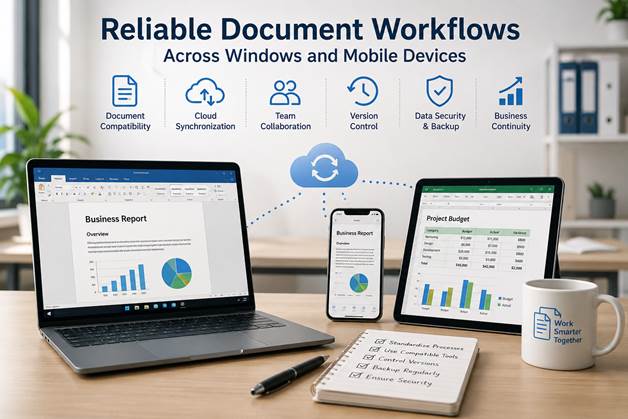
Small businesses depend on documents for almost every part of daily operations. Proposals, invoices, contracts, internal reports, customer records, meeting notes, and project plans all need to be created, reviewed, shared, and stored securely.
The difficulty is not usually producing a single document. The real challenge is maintaining a reliable workflow when employees use different Windows computers, mobile devices, file formats, storage locations, and office applications.
Without a consistent process, teams can quickly lose track of the latest version, overwrite important changes, send outdated attachments, or spend unnecessary money on overlapping software subscriptions. A reliable document workflow helps a small business control costs while improving productivity, accountability, and business continuity.
Why Small Businesses Need Reliable Document Workflows
Large companies often have dedicated IT departments, document management systems, and formal operating procedures. Small businesses usually work with fewer resources, which makes workflow consistency even more important.
A reliable document workflow should allow employees to:
· Create and edit files on Windows computers
· Review documents on phones and tablets
· Share files without creating multiple conflicting copies
· Identify the current approved version
· Restrict access to sensitive business information
· Recover documents after device failure or accidental deletion
The workflow also needs to remain practical. A complicated system that requires extensive training may be ignored by employees, while a collection of disconnected tools can increase both costs and administrative work.
Small businesses therefore need to balance functionality with simplicity. The best system is not necessarily the one with the largest number of features. It is the one that employees can use consistently across their normal devices and responsibilities.
Common Problems Caused by Incompatible Office Tools
Document problems often begin when employees use applications that do not handle the same file formats in the same way.
A report may look correct on one Windows computer but display different fonts, spacing, tables, or page breaks on another device. A spreadsheet created in one application may lose formulas or formatting when opened elsewhere. A presentation reviewed on a phone may not match the version shown during a customer meeting.
These compatibility issues create several business risks:
Repeated correction work
Employees may spend time repairing formatting instead of completing higher-value tasks.
Conflicting versions
When documents are repeatedly downloaded, edited, renamed, and emailed, teams may no longer know which copy contains the latest changes.
Delayed approvals
Managers may be unable to review a file if it cannot be opened properly on their current device.
Unnecessary software costs
A business may purchase multiple office applications because different employees believe they need different tools.
When evaluating common productivity software, small businesses should consider not only the initial price but also file compatibility, mobile access, collaboration options, update policies, and employee familiarity. Resources related to wps may be reviewed as part of a broader comparison of office software environments, but the final decision should be based on the company’s actual document requirements rather than brand recognition alone.
Windows and Mobile Document Compatibility
Windows computers remain central to many business workflows because they are commonly used for accounting, reporting, administrative work, document formatting, and file storage. Mobile devices, however, are increasingly important for quick reviews, approvals, customer communication, and work outside the office.
A reliable workflow should connect these environments rather than treat them as separate systems.
Employees may create a detailed proposal on a Windows computer, review it on a phone during travel, receive comments from a colleague, and then make final revisions from the office. This process only works smoothly when the document format, layout, and permissions remain consistent.
When comparing tools such as wps office with other cross-device productivity options, businesses should test real files rather than relying only on feature lists. A practical test should include:
· Opening a Windows-created document on a mobile device
· Checking tables, fonts, images, and page layout
· Editing a spreadsheet without damaging formulas
· Reviewing tracked changes and comments
· Exporting the final document to PDF
· Reopening the file on another Windows computer
Testing with actual invoices, reports, contracts, and templates helps reveal compatibility problems before a tool is adopted across the entire company.
Cloud Synchronization and Version Control
Cloud storage can make documents available across multiple devices, but synchronization alone does not guarantee good document management.
If employees use inconsistent file names or save documents in personal folders, cloud storage may simply create a larger collection of disorganized files. A reliable system requires clear rules for where documents are stored, how they are named, and who is responsible for approving changes.
A basic folder structure might separate files by:
· Department
· Customer
· Project
· Document type
· Financial period
· Approval status
File names should also provide useful information. A name such as Proposal_Final_New_Updated2.docx does not clearly identify the current version. A structured format is more reliable:
Client_Project_DocumentType_2026-07-11_v03.docx
Businesses should also decide when formal version numbers are necessary. Routine notes may not need detailed version control, while contracts, financial reports, customer proposals, and policy documents usually do.
Where possible, teams should use systems that preserve revision history. This allows users to identify who changed a document, restore an earlier version, and reduce the risk of permanently overwriting important information.
Managing Reports, Invoices, and Internal Documents
Different business documents require different levels of control.
Reports
Operational and financial reports should use standardized templates. Consistent headings, tables, date formats, and approval sections make reports easier to review and compare.
Templates should be stored in a shared location and protected from accidental modification. Employees should create new documents from the template rather than editing the master file directly.
Invoices
Invoice files should follow a predictable naming and storage system. Businesses may organize them by customer, invoice number, and payment status.
Access should be limited because invoices may contain customer information, pricing details, tax information, or bank instructions. Final invoices should usually be stored in a non-editable format after approval.
Contracts
Contracts require stricter version control. Drafts, reviewed copies, signed versions, and supporting documents should be clearly separated.
The final signed agreement should not be stored in the same folder with several similarly named drafts unless the status of each file is unmistakable.
Internal documents
Policies, meeting notes, training materials, and internal procedures should have designated owners. Someone should be responsible for reviewing each important document and removing outdated information.
Without ownership, old procedures may remain available long after the business has changed its systems or responsibilities.
Verifying Legitimate Productivity Software Sources
Software security is part of document security. A business may have strong backup and version-control procedures but still expose sensitive files by installing software from an unreliable source.
Before installing any productivity application, employees should verify:
· The identity of the software publisher
· The domain from which the installer is downloaded
· Whether the website uses HTTPS
· The operating system and device requirements
· The availability of current security updates
· The application permissions requested during installation
· Whether the installer includes unrelated software
Businesses should avoid downloading installers from unknown file-sharing pages, copied download portals, or advertisements that imitate official download buttons.
It is also useful to maintain an internal list of approved software sources. Employees should not install new office applications, browser extensions, PDF tools, or file converters without basic verification.
This is especially important for employees handling customer records, financial documents, contracts, or confidential internal information.
Backup and Business Continuity
A reliable workflow must continue operating when something goes wrong.
Small businesses can lose access to documents because of:
· Hardware failure
· Accidental deletion
· Malware
· Stolen devices
· Account lockouts
· Internet outages
· Employee departure
· Incorrect synchronization
A business continuity plan should include more than a single cloud account. Important documents should be backed up according to their value and recovery requirements.
A practical approach may include:
· Primary shared cloud storage
· Automated version history
· Periodic offline or secondary-cloud backups
· Restricted administrator access
· Document recovery testing
· Procedures for transferring ownership when an employee leaves
Backups should also be tested. A backup system cannot be considered reliable until the business has confirmed that files can actually be restored.
Companies should identify which documents are essential for continued operations. These may include customer contracts, accounting records, supplier information, employee procedures, licenses, and active project files.
A Practical Document Workflow Checklist
1. Define approved tools Select a limited set of office, storage, PDF, and communication applications.
2. Test file compatibility Open real business documents across Windows and mobile devices before standardizing a tool.
3. Create a shared folder structure Organize documents by department, customer, project, or document type.
4. Standardize file names Include clear dates, subjects, and version numbers.
5. Assign document owners Make specific employees responsible for templates, policies, reports, and contracts.
6. Control access Limit financial, legal, and customer documents to authorized employees.
7. Preserve revision history Use synchronization systems that allow previous versions to be restored.
8. Verify software sources Install productivity applications only from legitimate and reviewed sources.
9. Back up essential files Maintain more than one recoverable copy of critical business documents.
10. Review the workflow regularly Remove outdated templates, unused tools, duplicate subscriptions, and inactive user accounts.
Final Thoughts
Reliable document workflows do not require an expensive enterprise platform. Small businesses can achieve substantial improvements by choosing compatible tools, standardizing everyday processes, controlling document versions, and maintaining dependable backups.
The key is consistency. Employees should know where documents belong, which applications are approved, how files should be named, and which version is considered final.
By building a workflow that connects Windows computers with mobile devices, a small business can reduce software waste, prevent document confusion, support remote work, and remain operational when devices, accounts, or employees change.