How to Batch Remove Image Backgrounds with Free AI Tools
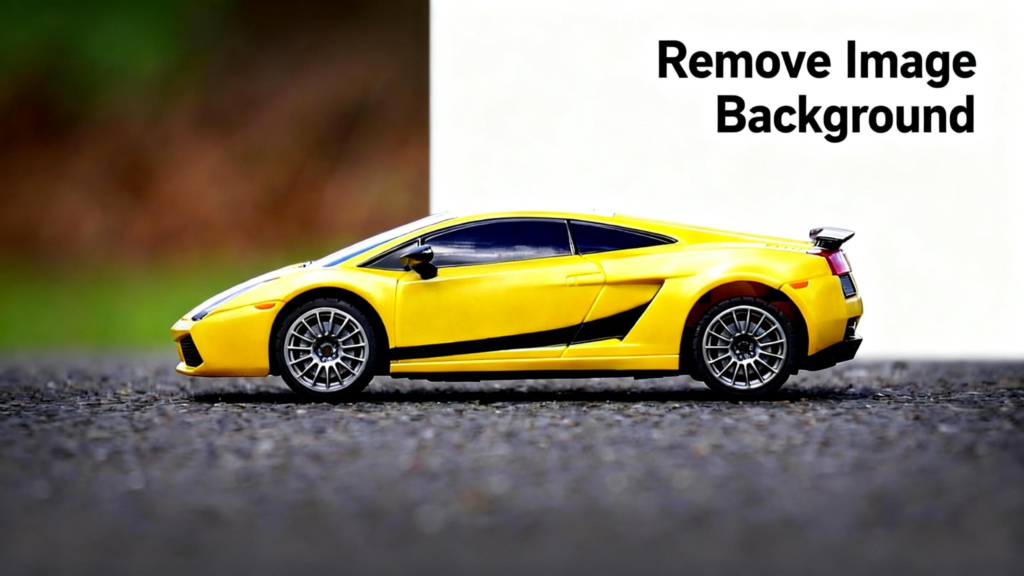
Removing backgrounds from a single image is manageable. Removing backgrounds from fifty images is a time sink that drains hours from your day. Whether you’re processing a product photoshoot, editing a portrait session, or preparing social media content for a campaign, batch background removal can transform a multi-hour project into a few minutes of work. Free AI tools now make this possible without expensive software subscriptions or professional editing services.
What is Batch Background Removal?
Batch background removal refers to processing multiple images simultaneously for background extraction, rather than editing each image individually. AI-powered tools analyze all uploaded images in sequence, applying the same background removal logic across the entire batch. This approach maintains consistency across your image set while dramatically reducing processing time—what would take hours manually in Photoshop can be completed in minutes with batch AI processing.
For anyone working with multiple images regularly—e-commerce sellers updating product catalogs, photographers processing sessions, social media managers preparing content, or designers handling client projects—batch processing isn’t just convenient, it’s essential for maintaining productivity. The ability to upload 10, 15, or 20 images at once and receive professional cutouts across the board changes how you approach projects entirely.
How to Use Vheer’s Background Remover for Batch Processing
Step 1: Go to Vheer’s Background Remover
Open your web browser and navigate to Vheer’s homepage. From the navigation menu, select Background Remover under the Image Tools section. The tool loads directly in your browser with no installation required and no account signup necessary.
Step 2: Upload Multiple Images
Click the Upload your images button to add your photos. You can select and upload up to 20 images at once for batch processing. The tool supports JPEG, PNG, and WebP formats, and works seamlessly with drag-and-drop functionality. Simply select all the images from your folder that need background processing and upload them together.
Step 3: Remove Backgrounds from All Images
Click the Remove Background button to initiate the AI processing. The tool processes all your uploaded images in sequence, removing backgrounds from each image and generating transparent PNG outputs. The entire batch completes in roughly 2-3 minutes depending on the number of images and their complexity.
Once processing finishes, you have two options for each image:
- Download individual results — Each image with its transparent background is ready to save separately.
- Apply new background colors — Use Vheer’s color panel to add solid backgrounds (white, black, or other colors) to any or all images in your batch before downloading.
Pro Tips for Batch Background Removal
Group Similar Images Together: When batch processing, organize your images by type or shooting conditions. Process all product photos shot under the same lighting in one batch, all portraits in another, and all graphics in a third. This ensures the AI applies consistent detection logic across visually similar images, resulting in more uniform outputs.
Check Image Quality Before Batch Processing: AI background removal works best with clear, high-resolution images. Before uploading your batch, quickly scan for any blurry, underexposed, or extremely low-contrast images that might produce suboptimal results. Processing these separately or re-shooting them improves overall batch quality.
Maintain Consistent Background Color Requirements: If your project requires specific background colors—like pure white for Amazon or brand colors for marketing materials—apply the same background to the entire batch using Vheer’s color panel. This creates visual consistency across your image set that would be difficult to achieve processing images individually.
Use Descriptive File Names Before Uploading: Since batch processing tools work with whatever file names you provide, rename your images with clear, descriptive names before uploading. Instead of “IMG_001.jpg,” use “product-name-variant-color.jpg.” This makes organizing downloaded results significantly easier.
Keep Original Files Separate from Processed: Create a dedicated folder for your batch-processed images before downloading. This prevents accidentally overwriting original files and keeps your workflow organized—especially important when processing multiple batches for different projects.
Test Batch on Small Sample First: If you’re working with a large set of similar images, process 3-5 as a test batch before committing to the full set. This lets you verify that the AI handles your specific image type well before spending time on the entire collection.
Leverage Batch Limits Efficiently: Vheer allows up to 20 images per batch. If you have more than 20 images, divide them into logical groups of 15-20 rather than processing in smaller batches. Fewer, larger batches complete faster than many small batches due to upload and processing overhead.
Document Your Background Settings: When applying colored backgrounds for brand consistency, note the exact color used (RGB values if possible). This ensures you can match the same background perfectly when processing additional images later or updating existing visuals.
Common Batch Processing Scenarios
E-commerce Inventory Updates: Online sellers regularly add new products, update existing photos, or refresh seasonal imagery. Batch processing makes maintaining a consistent visual catalog feasible without dedicating hours to background removal every week.
Photographer Client Delivery: Professional photographers can deliver additional background-removed versions of entire photo sessions as value-added services. Batch processing makes this offering practical rather than prohibitively time-consuming.
Marketing Campaign Production: Marketing teams creating campaigns across multiple channels often need the same subject on various colored backgrounds or isolated from original settings entirely. Batch processing rapidly produces all required variations.
Social Media Content Calendars: Content creators managing posting schedules often prepare weeks of content in advance. Batch processing entire photo shoots at once streamlines this workflow, keeping the content pipeline full without constant editing work.
Print and Digital Design Projects: Designers working on brochures, catalogs, advertisements, or websites frequently need dozens of isolated elements. Batch processing provides a library of ready-to-use assets without manual cutting for each one.
When to Process Individually vs. in Batches
While batch processing offers significant time savings, some situations benefit from individual image attention:
Critically Important Images: Hero images for landing pages, flagship products, or key marketing visuals may merit individual review and potentially manual refinement after AI processing.
Problematic Originals: Images with extreme reflections, transparent subjects, or poor edge contrast sometimes require individual attention or re-shooting rather than included in a general batch.
Precision Requirements: Scientific, medical, or technical images where absolute edge precision matters more than speed may benefit from professional manual editing regardless of AI capabilities.
For most everyday applications—e-commerce, social media, marketing materials, and general design work—batch AI processing delivers quality fully adequate for professional use while freeing hours of time.
Conclusion
Batch background removal represents one of the most practical applications of AI imaging technology. What once required hours of tedious, repetitive work now completes in minutes with results indistinguishable from manual editing for most use cases. For anyone processing multiple images regularly, batch processing isn’t just a convenience—it transforms workflows entirely.
Vheer’s free Background Remover makes this technology accessible to everyone without subscriptions, installations, or account requirements. The ability to upload up to 20 images simultaneously and receive professional cutouts across the entire batch levels the playing field between individual creators and well-resourced teams.
The time savings compound quickly. Processing 20 images manually might take 4-6 hours. Batch processing the same 20 images takes 3-5 minutes. That’s hours reclaimed for creative work, business development, or simply finishing projects faster. Over weeks and months, this efficiency gain becomes substantial.
For e-commerce sellers, photographers, social media managers, designers, and anyone regularly working with multiple images, batch background removal is no longer a luxury—it’s an essential tool in the modern creative workflow.
If you believe this article contains misleading, harmful, or spam content, please let us know.
Report this articleMore News
View More




Recent Quotes
View MoreQuotes delayed at least 20 minutes.
By accessing this page, you agree to the Privacy Policy and Terms Of Service.