How to Remove Preinstalled Apps Easily with IObit Uninstaller (Step-by-Step Guide)
By:
GlobePRwire
April 22, 2026 at 12:49 PM EDT
ⓘ This article is third-party content and does not represent the views of this site. We make no guarantees regarding its accuracy or completeness.
When you buy a new computer or install a fresh version of Windows, it often comes loaded with preinstalled apps that you may never use. These apps, sometimes called bloatware, can take up storage space, slow down your system, and clutter your interface. While some of them can be removed manually, others are more difficult to uninstall using built-in Windows tools. This is where IObit Uninstaller becomes incredibly useful. As a powerful uninstaller for Windows, it simplifies the process of removing unwanted apps, including those that are usually hard to delete. What Are Preinstalled Apps and Why Remove Them?Preinstalled apps are programs that come bundled with your operating system or device. While some may be helpful, many are unnecessary for most users. Common issues caused by these apps include: Wasted Storage SpaceUnused applications occupy valuable disk space that could be used for important files. Slower System PerformanceBackground processes from these apps can consume system resources. Cluttered InterfaceToo many apps make your system look messy and harder to navigate. Limited ControlSome apps cannot be removed easily through default settings. Removing these apps can significantly improve your PC’s performance and usability. Why Use IObit Uninstaller?Windows provides basic uninstall options, but they often leave behind leftover files and registry entries. IObit Uninstaller goes a step further by completely removing programs and their traces. Key Advantages:
As a dedicated uninstaller for Windows, it offers more control and deeper cleaning compared to built-in tools. Key Features That Make It Effective1. Powerful Scan EngineIt detects all installed programs, including hidden and bundled apps. 2. Force UninstallRemoves programs that cannot be deleted through normal methods. 3. Batch UninstallAllows you to remove multiple apps at once. 4. Residual File CleanupDeletes leftover files and registry entries after uninstalling. 5. Software Health MonitoringIdentifies problematic or rarely used applications. Step-by-Step Guide to Remove Preinstalled AppsFollow these simple steps to remove unwanted apps using IObit Uninstaller: Step 1: Download and InstallGet the latest version of this uninstaller for Windows from the official website and install it.
Step 2: Launch the ProgramOpen the software to access its main dashboard.
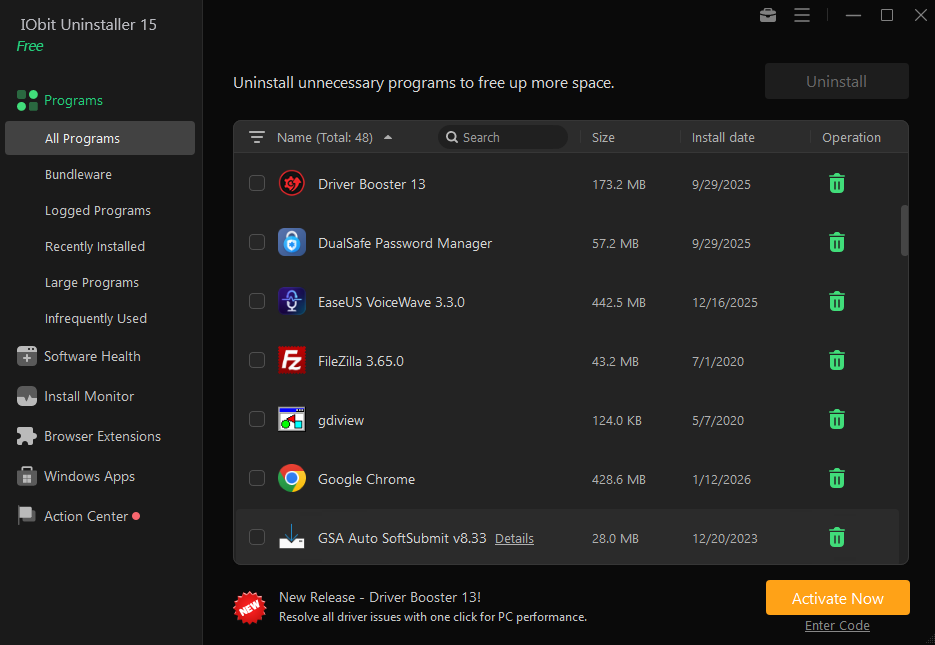
Step 3: Go to Installed ProgramsGo to the section that displays all the installed applications. Step 4: Find Preinstalled AppsLook for apps you don’t need. You can sort or search for them easily. Step 5: Select Apps to RemoveTick the checkbox next to each unwanted app. Step 6: Click UninstallPress the uninstall button to begin the removal process. Step 7: Remove LeftoversAfter uninstalling, allow the tool to scan and delete leftover files. This process ensures that apps are completely removed without leaving unnecessary data behind. Removing Stubborn Apps with Force UninstallSome preinstalled apps are difficult to remove because they are deeply integrated into the system. In such cases, the Force Uninstall feature is extremely helpful. How to Use It:
This feature bypasses restrictions and removes even the most stubborn programs. Benefits of Removing Preinstalled AppsCleaning your system from unnecessary apps offers several advantages: Faster PerformanceFewer background processes improve system speed. More Storage SpaceRemoving unused apps frees up disk space. Cleaner InterfaceYour system becomes easier to navigate. Better ControlYou decide which apps stay on your PC. Tips for Safe UninstallationWhile removing apps, keep these tips in mind:
These practices help maintain system stability. Common Mistakes to AvoidHere are some mistakes users often make:
Using a reliable uninstaller for Windows like IObit Uninstaller helps prevent these issues. Why IObit Uninstaller Is a Smart ChoiceWith so many tools available, IObit Uninstaller stands out because of its simplicity and effectiveness. It provides advanced features while remaining easy to use. It is ideal for:
Its combination of power and ease makes it one of the best choices for managing installed programs. Final ThoughtsPreinstalled apps can slow down your PC and create unnecessary clutter, but removing them doesn’t have to be complicated. With the help of IObit Uninstaller, you can easily get rid of unwanted programs and keep your system clean. As a reliable uninstaller for Windows, it ensures that apps are completely removed along with their leftover files. By regularly cleaning your system, you can enjoy better performance, more storage space, and a smoother user experience. If you want a cleaner and faster PC, taking control of your installed apps is the perfect place to start.
Report this content
If you believe this article contains misleading, harmful, or spam content, please let us know. Report this articleMore NewsView MoreRecent QuotesView More
Stock Quote API & Stock News API supplied by www.cloudquote.io
Quotes delayed at least 20 minutes. By accessing this page, you agree to the Privacy Policy and Terms Of Service.
© 2025 FinancialContent. All rights reserved.
|