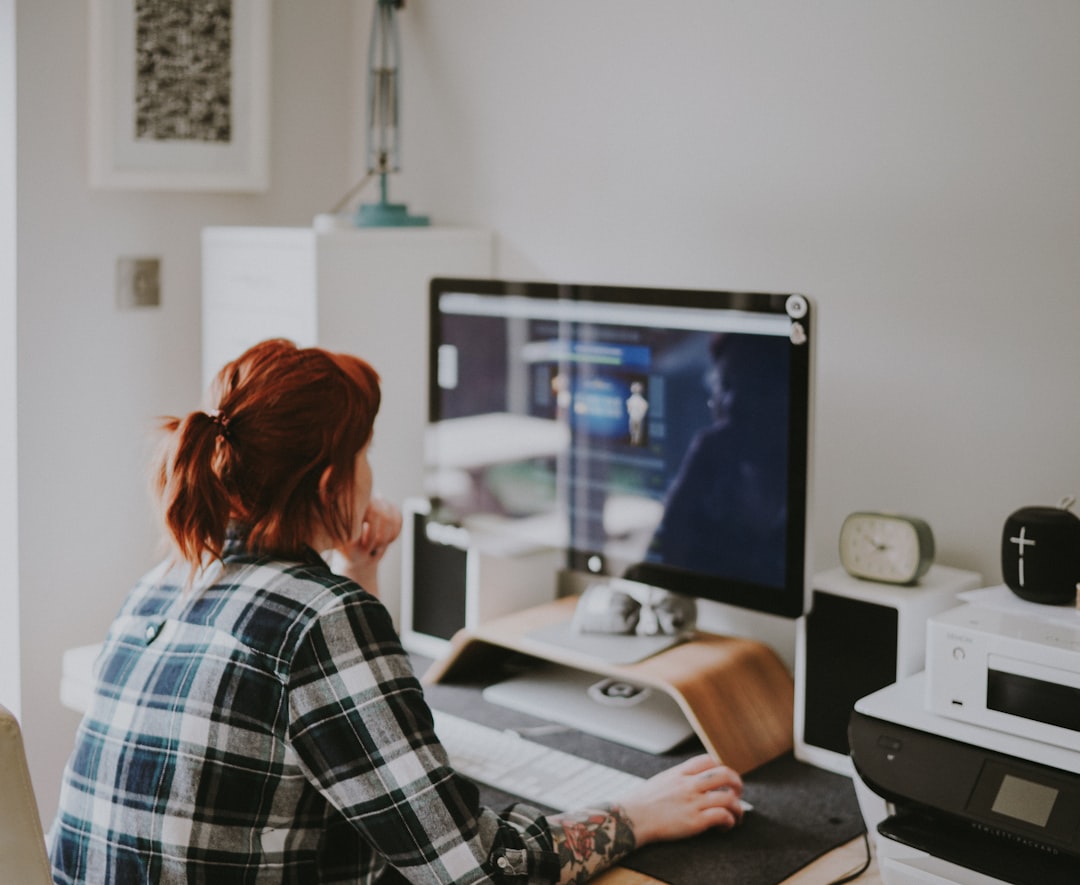
 Photo from Unsplash
Originally Posted On: https://www.techbitznpcs.com.au/blog/our-blogs/setting-up-a-computer-computer-basics-guide/
Did you know that hackers write about five thousand new viruses every month?
If you have a new computer that needs to be set up, it can be difficult to know how to get started. If you don’t know what steps to take, it is possible that you will not set your computer up correctly.
This will increase the likelihood that it will get infected by some type of malware. The good news is that setting up a computer is easier than many people think.
We’ve written a guide to help you out. Read on if you are interested in finding out more.
Install Windows on Your New Computer
Even though setting up windows on a new computer can be time-consuming, you won’t be able to use your computer until you’ve done this.
When you boot your system for the first time, it will take you through a series of steps to install Windows. This can take several minutes to complete.
Make sure that you create a username that you will easily remember and that you choose a password that is difficult to crack.
Once the process is finished, you will be able to use your computer.
Computer Basics: Update Windows on Your New PC
If your computer was sitting on the shelf at the store you bought it from for a long time, there is a possibility that it will not have the newest version of Windows installed.
It is also important to understand that Windows frequently creates updates and releases new patches. Computers that are not fully patched often miss out on important security fixes and exciting new features.
Therefore, you should make sure that the newest version of Windows is already installed on your computer.
The first thing you will need to do is make sure that your computer is connected to the internet. You will then need to check for system updates.
Your system will tell you which updates are available and it will give you the choice to download and install them.
Once you’ve installed these updates, make sure to restart your computer.
If your new computer came installed with Windows 10, you might notice that there is an option to upgrade to Windows 11.
Keep in mind that you will need to learn a new interface if you choose to upgrade to Windows 11.
Install Your Browser of Choice
If you try to surf the web on an unfamiliar browser, it might feel like you are trying to walk in somebody else’s shoes. This is why one of the most overlooked computer set up tips is to install your favourite browser.
Your Windows computer will come installed with its default browser which is known as Microsoft Edge.
If you like using this browser, it will not be necessary for you to take future action.
You will otherwise need to download and install your browser of choice. The most popular browsers are Google Chrome, Firefox, and Opera.
Chrome is one of the best-rated browsers because it offers users a combination of speed, security, and ease of use.
On the other hand, people who value security prefer to use Firefox, which experts say outperforms Google Chrome in this category.
Set Up Your New Computer’s Security Settings
Windows comes with Windows Security already enabled unless your new PC includes a trial for a third-party antivirus program.
If you want your laptop computer to last for many years and if you don’t want to worry about purchasing and installing a new antivirus program, you should use Windows’s default antivirus software.
It is extremely simple to use Windows security. It will effectively detect any malware that is on your system.
With this being said, you should think about purchasing additional antivirus software if you want your computer to be as secure as possible.
Clean Your System’s Bloatware
Most big-name PC makers fill their computers with loads of unnecessary software.
The easiest way to get rid of programmes that you do not want or need is to type “add and remove programmes” into Windows’s search box.
Scan through the list of programmes that you see and get rid of any applications that you don’t want.
Make sure not to touch apps from any hardware makers such as Intel, AMD, Nvidia, HP, or Lenovo.
Consider eliminating any bundleware that you come across. This includes programs such as Candy Crush, Netflix, Spotify, and other unfamiliar software.
Download and Install Your Favourite Software
Once you get rid of your computer’s unnecessary clutter you’ll have more space to download and install your favourite programmes.
Keep in mind that lots of programmes that people download from the internet try to sneak other unwanted free programmes into their installation process.
This is why you should pay close attention to what kinds of things you agree to when you are downloading and installing programmes onto your computer.
Backup Your New PC
Once you’ve installed all of your favourite programmes, all that you will need to do is back up your new computer. You can do this by copying your computer’s applications and files to an external hard drive.
You can also use services such as Google Drive and Dropbox if you prefer to back up your computer’s data to the cloud.
Setting Up a Computer: Easier Than You Might Think
If you are unsure of what steps to take when setting up a computer, it is important to know that the process is more straightforward than many people think.
Whether you need external hardware, parts for upgrades, or an entirely new laptop, Tech Bitz N PCs is here to help you. If you have any questions about our products, don’t hesitate to contact us today.