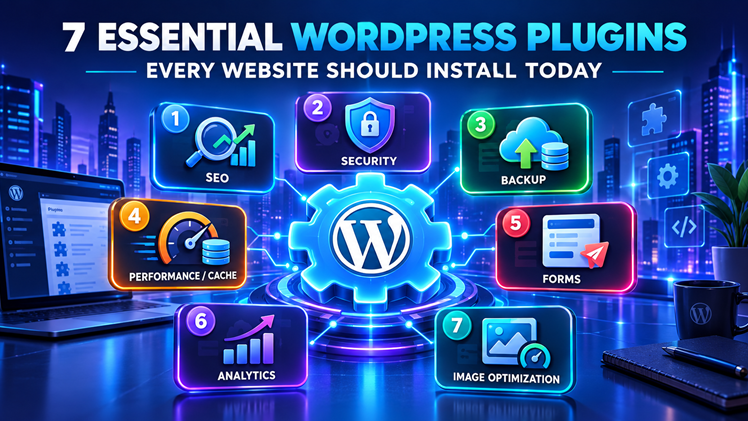
A fresh WordPress install can do almost nothing on its own beyond publishing basic posts and pages. Everything that makes a site actually usable, protected from attacks, fast to load, findable on Google, backed up against disaster, comes from plugins, and the WordPress plugin directory holds tens of thousands of them. Most beginners either install far too many or freeze up entirely trying to figure out where to start.
This guide narrows that down to 7 essential WordPress plugins covering the functions every site genuinely needs: security, performance, SEO, backups, contact forms, spam protection, and analytics. Each section names one commonly used plugin as a concrete example, explains what it does, and covers the honest tradeoffs, so you can install with confidence instead of guessing.
What Makes a Plugin "Essential"
Not every useful plugin belongs on an "essential" list. A plugin earns that label here by covering a function nearly every website needs regardless of niche, whether that's a blog, a small business site, or a portfolio, not a feature specific to one type of site like e-commerce or membership content.
The 7 categories below all meet that bar: skip any one of them, and you're carrying a real, avoidable risk, an unpatched security hole, no backup before a bad update, invisible to search engines, rather than just missing a nice-to-have feature.
This also means the list deliberately leaves things out. WooCommerce, membership plugins, multilingual tools, and page builders like Elementor are all genuinely useful, sometimes essential, but only for a subset of sites with that specific need. Including them here would turn a focused, 7-item shortlist into a much longer directory, which defeats the purpose for a reader trying to figure out what actually matters on day one.
The 7 Essential WordPress Plugins
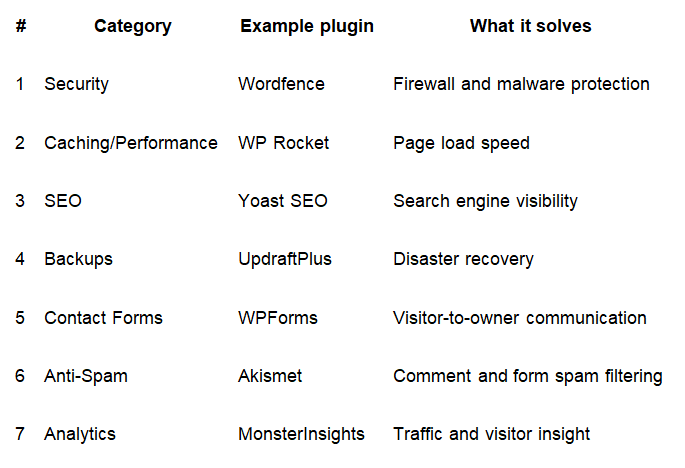
Each of these represents a category, not a single mandatory product; the named plugin is a widely used example, and reasonable alternatives exist in every category.
1. Security: Wordfence
WordPress powers a large share of the web, which makes it a common target for automated attacks: bots scanning for outdated plugins, brute-force login attempts, and known vulnerabilities. A security plugin like Wordfence adds a web application firewall (WAF), a filter that blocks malicious traffic before it reaches your site, along with malware scanning that checks your files for signs of compromise. Sucuri is a commonly used alternative in this same category, worth comparing if Wordfence's specific feature set doesn't fit.
Firewall protection and malware scanning come free, handling the baseline risk most sites face. What sits behind a paid tier is typically real-time threat intelligence, meaning updates as new attack patterns are discovered rather than on a delayed feed, plus more frequent scans. For a new site, starting free is reasonable; upgrading becomes worth considering once the site handles sensitive data or sees meaningful traffic.
Security plugins also don't replace basic hygiene. Weak admin passwords, an outdated WordPress core version, and plugins that haven't been updated in years remain common ways sites get compromised, regardless of which security plugin is installed. A firewall reduces exposure; it doesn't eliminate the need to keep everything else current.
2. Caching/Performance: WP Rocket
Page caching means storing a ready-to-serve version of your pages instead of rebuilding them from the database on every visit, which is the single biggest lever most sites have over load speed. WP Rocket and similar caching plugins also typically handle image compression, CSS and JavaScript minification (shrinking code files without changing what they do), and lazy loading (delaying offscreen image loads until a visitor scrolls to them).
Free caching plugins like W3 Total Cache exist and cover basic page caching reasonably well, though they generally require more manual configuration. WP Rocket itself is a paid-only plugin, with no free tier, positioned on ease of setup, sensible defaults out of the box, rather than a configuration-heavy free alternative. Site speed also affects Core Web Vitals, a set of page-experience metrics Google factors into ranking alongside many other signals, so performance work here has SEO value too, not just a better visitor experience.
3. SEO: Yoast SEO
An SEO plugin doesn't rank a site by itself, but it removes the technical barriers that keep good content from being found. Yoast SEO handles XML sitemaps (a file listing your pages for search engines to crawl), schema markup (structured data that helps search engines understand what a page is about, sometimes producing rich snippets in results), and on-page guidance for writing meta titles and descriptions.
The free version covers sitemaps, basic schema, and on-page analysis, which is enough for most single-author sites. The premium version adds internal linking suggestions, redirect management for when URLs change, and multiple keyword targeting per page. Running two full SEO opimization plugins simultaneously (Yoast plus Rank Math, for example) isn't recommended, since they can conflict over the same sitemap and schema output; pick one.
4. Backups: UpdraftPlus
A backup plugin is insurance against the two most common ways sites break: a bad plugin update and a hack. UpdraftPlus, or a similar option like BlogVault, schedules automatic backups of your files and database, then stores them somewhere other than your own server, typically remote storage like Google Drive, Dropbox, or Amazon S3, so a server-level failure doesn't take your backups down with the live site.
Scheduled backups to remote storage and manual restoration are available free. Incremental backups, saving only what changed since the last backup rather than a full copy each time, along with site migration tools for moving to new hosting, sit behind the paid tier. For most sites, free UpdraftPlus with backups genuinely configured, not just installed, covers the core need.
That last distinction matters more than it sounds. Installing a backup plugin without setting a schedule and confirming remote storage is connected provides no actual protection; it just looks like protection. Checking that a real backup exists in remote storage, not just that the plugin is active, is worth doing once after setup rather than assuming it worked.
5. Contact Forms: WPForms
Without a form plugin, "contact us" usually means exposing a raw email address to spam bots or offering no way to reach you at all. WPForms, or an alternative like Gravity Forms, provides a drag-and-drop builder for creating forms without code, along with conditional logic (showing or hiding fields based on earlier answers) for anything beyond a simple contact form.
Basic contact forms are handled adequately by the free tier, WPForms Lite. Payment collection, multi-page forms, and more advanced conditional logic require upgrading, useful once a site needs more than a simple inquiry form, like event registration or a detailed quote request.
6. Anti-Spam: Akismet
Every WordPress installation ships with Akismet pre-installed, but it isn't active by default. It requires an API key and a quick activation step before it starts filtering spam. Once active, it checks comments and form submissions against a spam-detection service and filters obvious spam automatically, instead of you moderating it by hand. Antispam Bee is a fully free alternative worth knowing about, particularly for sites that want to avoid sending data to a third-party spam-detection service entirely.
Personal, non-commercial sites can use Akismet free; commercial sites need a paid plan based on traffic volume. Since it's already sitting in most installs unused, activating it is one of the lowest-effort items on this list, not a new plugin to find and install.
7. Analytics: MonsterInsights
Google Analytics works without any WordPress plugin, but reading raw Google Analytics reports is a genuinely awkward experience for most site owners. MonsterInsights, or the lighter-weight Burst Statistics for a more privacy-focused option, connects your site to GA4 (Google's current analytics platform) and surfaces the numbers that matter most, top pages, traffic sources, conversion events, inside the WordPress dashboard itself, without needing to leave your site to check them.
Basic GA4 connection and core reports come free. E-commerce tracking, form conversion tracking, and more detailed audience reports require the paid tier. A site early on can reasonably skip a dedicated analytics plugin and check Google Analytics directly; the plugin's value shows up once checking traffic becomes a regular habit worth making convenient.
Free vs. Pro Versions: What You Actually Need to Pay For
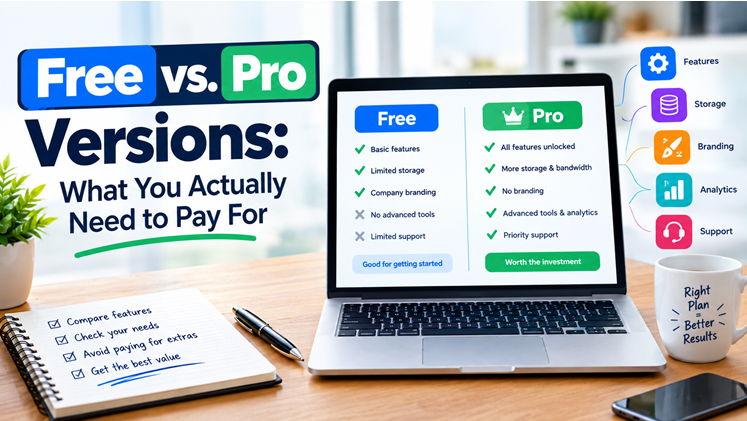
A consistent pattern runs across all 7 plugins above: the free version handles the core function completely, while paid tiers add convenience, advanced targeting, or features specific to growing or commercial sites.
Start free across the board. None of these categories require a paid plugin on day one.
Upgrade security and backups first, if you upgrade anything, since these protect against the most costly failures (a hacked or lost site).
Upgrade SEO, forms, and analytics only when you hit a specific limitation the free version doesn't cover, not preemptively.
Caching is the exception: some strong caching plugins are paid-only (WP Rocket among them), so the free-vs-paid choice here is really "manually configured free plugin" vs. "paid plugin with sensible defaults," rather than a feature-tier decision.
How Many Plugins Is Too Many
There's no fixed number that's safe or unsafe; a site with 30 well-maintained, actively updated plugins can run faster than a site with 10 abandoned ones. What actually causes problems is plugin compatibility conflicts (two plugins trying to modify the same function differently) and unmaintained plugins that haven't been updated in years, which is both a security risk and a common source of site breakage after a WordPress core update.
A reasonable practice: before installing anything, check when a plugin was last updated and how many active installations it has, both visible on its WordPress.org listing page. A plugin last updated three years ago with declining installs is a real warning sign regardless of how good its reviews once were.
This is also why the essential WordPress plugins list above stays at 7 rather than expanding into every useful category. Each addition beyond a genuine need is one more thing to keep updated, one more potential compatibility conflict, and one more piece of code the security plugin has to account for. None of that means more plugins are inherently bad; it means each one should be there because the site actually needs it, not because it seemed useful when you found it.
Installing Your First Plugins the Right Way
From the WordPress dashboard, go to Plugins, then Add New, search for the plugin by name, click Install, then Activate. A few practices reduce risk when doing this:
Install and test one plugin at a time, so if something breaks, you know exactly which plugin caused it.
Back up your site before installing anything new (which is where the backup plugin above earns its place first on this list, before the others).
Check the plugin's WordPress.org rating and last-updated date before installing, not just its name recognition.
Avoid installing two plugins that do the same job (two SEO plugins, two caching plugins), since they commonly conflict rather than stack their benefits.
Frequently Asked Questions
Do I really need all 7 of these plugins on day one?
Security, backups, and caching matter from day one, since they protect against real risks and directly affect visitor experience. SEO and analytics matter early but aren't urgent within the first hours. Forms and anti-spam matter as soon as your site is publicly reachable and could receive spam or inquiries.
Is Akismet already included with WordPress, or do I need to install it separately?
It's already there. Akismet comes pre-installed with standard WordPress installations but isn't activated by default; you need to get a free or paid API key and activate it through Settings.
Will too many plugins slow down my website?
Not automatically. A large number of well-maintained, efficiently coded plugins is usually fine. Slowdowns come from poorly coded or outdated plugins, and from redundant plugins doing overlapping jobs, more than from raw plugin count.
What's the difference between the free and paid version of a security plugin like Wordfence?
The free version covers firewall protection and malware scanning, the core defense most sites need. Paid tiers add faster, real-time threat intelligence updates instead of a delayed feed, along with additional scanning features.
Can I use more than one SEO plugin at the same time?
It's not recommended. Running two full SEO plugins (like Yoast SEO and Rank Math together) commonly causes conflicts over sitemap generation and schema markup output. Pick one.
How do I know if a plugin is safe to install?
Check its WordPress.org listing for the last-updated date, the number of active installations, and its support responsiveness. A plugin actively maintained with a large install base and recent updates carries far less risk than one that hasn't been touched in years, regardless of its feature list.
Conclusion
These 7 categories, security, performance, SEO, backups, forms, anti-spam, and analytics, cover the functions nearly every WordPress site genuinely needs, and the free version of a plugin in each category is enough to start with responsibly. The mistake to avoid isn't skipping these; it's installing dozens of extra plugins for features you don't need yet while leaving one of these 7 gaps unfilled.
The practical next step: check which of these 7 categories your site is currently missing, start with backups and security if you're missing both, and add the rest as your site's actual needs, not a generic checklist, call for them.